
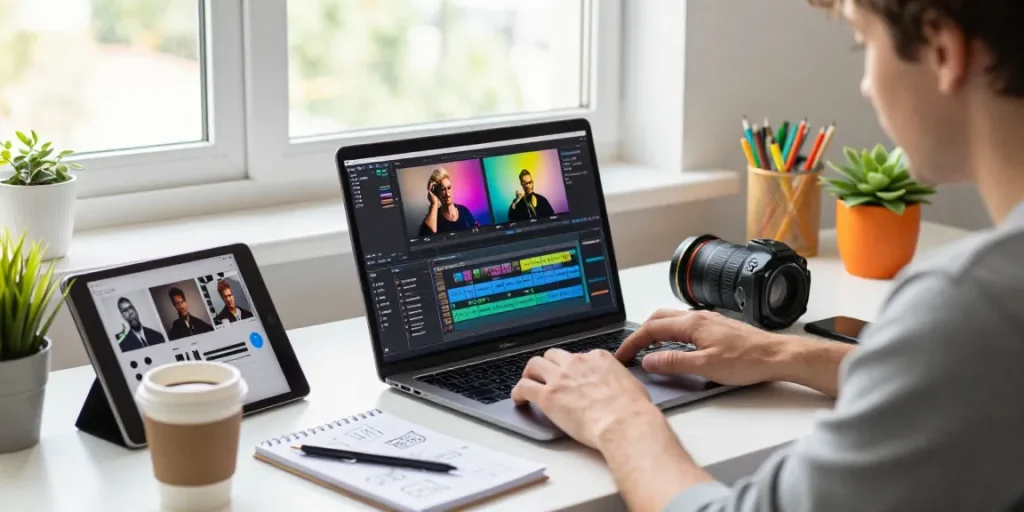

Understanding Text Overlays in Video Editing
Adding text to videos has emerged as a vital component of modern video production, particularly as multimedia content continues to dominate the digital landscape. Text overlays not only enhance storytelling but also improve audience engagement by providing context, emphasizing key messages, and making videos accessible to a broader audience. With the rise of social media and platforms that autoplay videos without sound, the ability to add text to video effectively has never been more important. This guide provides a comprehensive overview of text overlays, their significance, and the tools available to streamline the process.
What is Adding Text to Video?
Adding text to video involves placing textual elements directly onto the video frame. This can include titles, captions, subtitles, or any other textual information that supports the video content. Text overlays are typically used to convey essential information that might not be immediately obvious through visuals alone. In the realm of digital content creation, text overlays can enhance the viewer’s understanding of the narrative or add a professional touch to marketing materials.
Importance of Text Overlays for Engagement
Text overlays play a crucial role in increasing viewer engagement. They serve multiple purposes, such as:
- Improving Comprehension: Viewers often retain information better when it is presented both visually and textually.
- Attracting Attention: Bold or animated text can draw viewers’ eyes to key messages, helping to maintain interest.
- Enhancing Accessibility: Text overlays make content accessible to individuals with hearing impairments and can aid non-native speakers in understanding dialogue.
- Adapting to Platforms: Many social media platforms autoplay videos with muted sound. Text overlays can provide essential context in these situations.
Common Types of Text Used in Videos
There are various types of text that can be effectively used in videos:
- Titles: Often used at the beginning or end of a video to introduce or summarize content.
- Subtitles: Used to translate spoken dialogue into text, making them accessible to a broader audience.
- Captions: Similar to subtitles but often include descriptions of sounds and music to enhance comprehension.
- Call-to-Action Text: Encourages viewers to take a specific action, such as subscribing, visiting a website, or liking the video.
Step-by-Step Process to Add Text to Video
Quick Overview of the Editing Process
The process of adding text to video can be broken down into a few simple steps. Using an online video editor, users can upload their videos, add the desired text overlays, and then export the final product. Here’s how you can effectively add text to your video:
Detailed Steps to Add Text Effectively
- Upload Your Video File: Select your video file from your device or upload it from a URL.
- Create a Supertitle: This is the primary overlay text which can be a title or a key message.
- Customize Your Text on Video: Adjust font, size, color, and position to match your video’s style.
- Download Your Video with Text Overlays: Once satisfied, export the video in your desired format.
Tips for Syncing Text with Video Timing
Effective syncing of text with video content is vital to maintaining viewer engagement. Here are some tips:
- Use Timing Tools: Utilize tools that allow you to set the exact start and end times for each text overlay.
- Preview Regularly: Preview the video frequently as you add text to ensure that it appears at the right moment.
- Keep it Brief: Short text overlays are often more effective and easier for viewers to read quickly.
Best Practices for Text Customization
Choosing the Right Fonts and Colors
The choice of font and color can significantly affect the impact of your text overlays. Consider the following:
- Font Style: Use fonts that are clear and easy to read. Avoid overly decorative fonts that can distract from the message.
- Color Contrast: Ensure that the text color contrasts well with the video background for maximum readability.
Creating Hierarchy with Different Text Styles
Not all text is created equal; creating a visual hierarchy can help communicate your message effectively. Use different styles to indicate importance:
- Headings: Use larger, bold text for titles or main points.
- Subheadings: Slightly smaller fonts can indicate secondary information.
- Body Text: Regular-sized fonts should be used for detailed information.
Ensuring Readability and Accessibility
To ensure that your text overlays are accessible to everyone, follow these guidelines:
- Keep Text Simple: Avoid jargon and overly complex language.
- Timing is Key: Allow enough time for viewers to read the text, particularly if it contains important information.
- Use Alt Text: For platforms supporting it, add alt text for visually impaired users.
Advanced Techniques for Professionals
Animating Text for Visual Impact
Animation can significantly enhance the appeal of your text overlays. Experiment with the following:
- Fade Ins and Outs: Gradually fading text in and out can make transitions smoother.
- Sliding Text: Moving text can capture attention and add dynamism to your video.
- Text Effects: Utilize effects like shadows or outlines to make the text pop against the background.
Using Backgrounds and Enhancements
Adding backgrounds to your text can improve visibility and create a professional look. Consider the following techniques:
- Solid Color Backgrounds: A contrasting background can help make your text stand out.
- Blurred Video Backgrounds: Using a blurred section of the video can keep the viewer’s focus on the text.
Implementing Consistent Branding Across Videos
For businesses, maintaining brand consistency is essential. Here are ways to ensure this:
- Use Brand Colors and Fonts: Consistently use your brand’s color palette and selected fonts across all videos.
- Logo Integration: Include your logo in text overlays to reinforce brand recognition.
Future Trends in Video Text Editing
AI and Automation in Text Addition
The future of video editing is heavily influenced by advancements in artificial intelligence and automation. These trends include:
- Smart Text Suggestions: AI tools may offer suggestions for text based on the video’s content.
- Automated Transcription and Subtitles: AI can generate subtitles in real-time, drastically reducing editing time.
Emerging Tools for Enhanced User Experience
As technology progresses, new tools are continuously emerging to simplify the video editing process. Some of these include:
- Online Editors: Cloud-based platforms that allow for collaboration and easy access from any device.
- Mobile Apps: Editing tools for smartphones that cater to content creators on-the-go.
Predictions for Video Editing in 2026 and Beyond
Looking ahead, we can expect the following developments in video editing:
- Augmented Reality Integration: Text overlays may evolve to include AR elements, enhancing interactive experiences.
- Collaborative Editing Platforms: More tools will emerge that allow real-time collaboration among multiple editors.
- Advanced Customization Features: Editors will have more options to tailor text overlays to fit specific creative visions.
What are the best tools for adding text to video?
Several tools are available that can help users add text to videos, including:
- SubtitleBee: Known for its user-friendly interface and powerful features for adding, styling, and syncing text overlays with precision.
- Canva: Provides an extensive library of fonts and customization options for text overlays.
- VEED.IO: An intuitive platform for adding animated text and captions quickly.
How do I ensure my text stands out on various devices?
To make text overlays stand out across devices, consider the following:
- Responsive Design: Ensure text size and positioning adjust dynamically based on screen size.
- A/B Testing: Test visual appeal on different devices and resolutions to find the perfect balance.
Can I animate text overlays in changing video environments?
Yes, animating text overlays in dynamic video environments is possible. Tools like SubtitleBee allow for various animation effects that can adapt to the video’s context, enhancing the overall viewing experience.
What file formats support text overlay features?
Most video editing tools, including SubtitleBee, support a variety of formats for text overlay, including:
- MP4
- MOV
- AVI
- WebM
How much does it cost to add text to videos online?
Many online platforms offer free plans for basic editing, while advanced features may require a subscription or one-time payment. SubtitleBee, for example, offers various pricing tiers tailored to different needs, making it an accessible option for both individuals and businesses.